Aero IPTV TV Guide (EPG) and Catch-Up Explained
Part of our Sport, TV Guide & Picture Quality series. Follow the sporting year, use the programme guide and catch-up, and get the best picture on Aero IPTV.
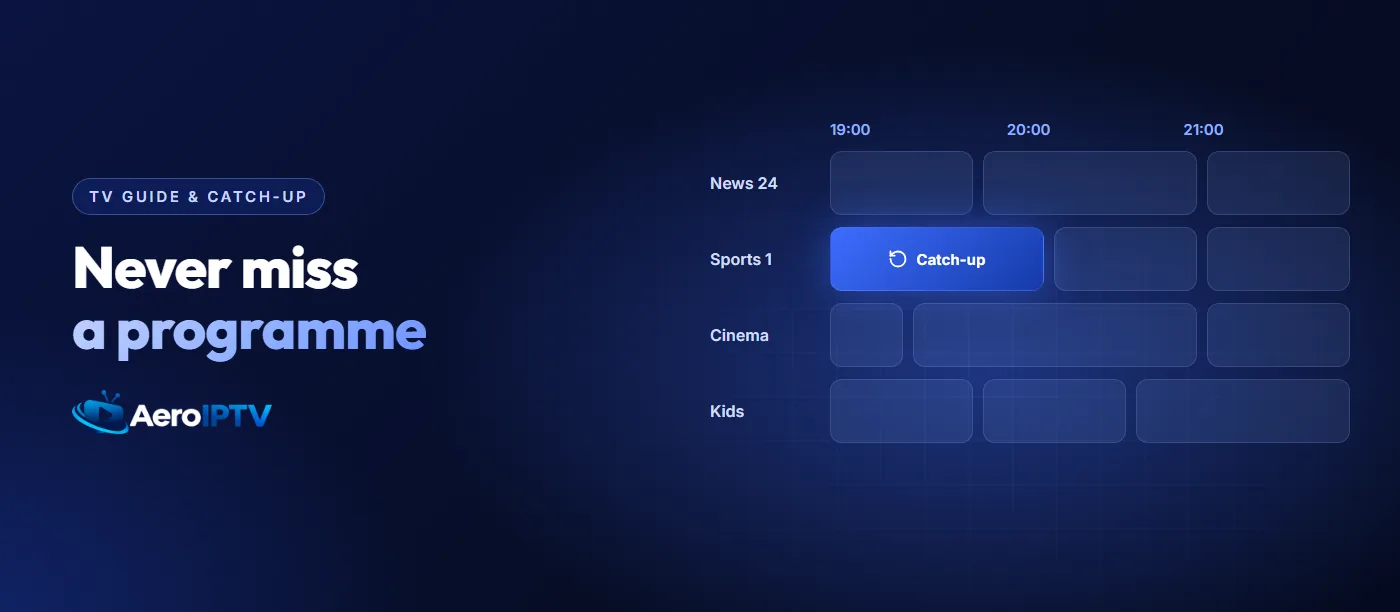
Thousands of channels are only useful if you can see what is on them. That is the job of the Aero IPTV EPG, the electronic programme guide: a grid of channels and times that works like a TV listings magazine on screen. Many channels also offer catch-up, which lets you go back and watch a programme that has already aired.
This guide explains how both work, how to read and organise the guide, what to do when it is blank or shows the wrong times, and how to make the most of catch-up. It is part of our sport and viewing series alongside the guide to watching sport on Aero IPTV and the 4K and quality guide. For the service as a whole, see the complete AeroIPTV guide.
What is the Aero IPTV EPG?
The EPG is a stream of schedule data delivered alongside the channels. Your player app downloads it and draws it as a guide, usually a grid with channels down the side and times across the top. Each programme can include:
- Title and start and end times.
- A short description, sometimes with season and episode numbers.
- A category or age rating on some channels.
- A catch-up marker on programmes you can replay.
Most live channels on Aero IPTV include guide data. A few, such as some event or specialist channels, may show only the channel name. Those are still watchable; they just have no schedule attached.
Choosing a player with a good guide
How the guide looks depends entirely on the player app. The same Aero IPTV login can show a cramped list in one app and a clear full-screen grid in another. Look for:
- A grid-style guide you can scroll by channel and by time.
- Guide data from the Xtream Codes login, loaded automatically, rather than a separate guide link you have to add by hand.
- Catch-up support, sometimes called archive, timeshift or replay.
- Reminders that alert you before a programme starts.
- Search across the guide, so you can find a match or show by name.
Our Aero IPTV app chooser recommends players for each device with these features in mind.
Reading and organising the guide
- Start from favourites, not the full list. Add the channels you watch to a favourites group, then open the guide on that group. Ten channels are far easier to scan than thousands.
- Group by type. Separate favourites for news, sport and kids keep each guide view short.
- Use the 'now and next' view if your player has one, for a quick look at what is on without the full grid.
- Set reminders for programmes later in the evening, especially sport with fixed start times.
Fixing a blank Aero IPTV guide
If the guide shows channel names but no programmes, work through these in order:
- Wait a few minutes after logging in. Guide data is large, and the first download can take a while, especially on slower sticks.
- Refresh or update the EPG from the player's settings.
- Check the player is set to use the login's guide data, not an empty custom guide link.
- Clear the player's cache on Firestick or Android if the guide stays empty, then refresh again. Our Firestick guide shows where.
- Check another channel. If only one channel is blank, it may simply have no guide data.
Fixing wrong programme times
If programmes appear an hour or more out, the guide is fine; the player is showing it in the wrong time zone. Open the player's settings and look for time zone, EPG time shift or EPG offset:
- Set the time zone to your local zone, or
- Adjust the offset in hours until a programme you know matches its real start time.
Check the device's own clock and time zone too. A stick set to the wrong region can throw the guide out even when the player is set correctly. Clocks changing for summer time are a common moment for this to need adjusting.
How catch-up works on Aero IPTV
On channels that support it, catch-up keeps recent programmes available to replay for a limited window after they air. The length of that window varies by channel. In the guide, programmes you can replay are usually marked with a small icon, or appear in a slightly different colour.
- Open the guide on a channel that supports catch-up.
- Scroll back in time to a programme that has already started or finished.
- Select it and choose Play or Watch from start. It plays like a recording: you can pause, rewind and skip forward.
Good ways to use catch-up
- A match that kicked off while you were at work: start it from the beginning when you get home. Mute score alerts first.
- A fight card that started early: go back to the first bout of the main card.
- The evening news: watch it when it suits you instead of at broadcast time.
- A series episode you missed: if the series is not in the on-demand library, catch-up may still have it for a few days.
Catch-up, on demand and live: which is which?
| Live TV | Catch-up | Films & series on demand | |
|---|---|---|---|
| What it is | The channel as it airs | A recent programme replayed from the guide | A library title you start any time |
| Pause and rewind | Limited | Yes | Yes |
| How long it stays | Now only | A limited window, varies by channel | As long as it is in the library |
| Where to find it | Channel list | Guide, on supported channels | Films and Series sections |
Catch-up or recording?
Some players can also record live channels to the device's storage. Catch-up and recording solve the same problem in different ways:
- Catch-up needs no storage and no planning, but only works on supported channels and only for a limited window after broadcast.
- Recording works on any channel you can watch, and keeps the programme as long as you like, but it needs free space on the device and has to be set up before the programme starts. Firesticks in particular have little storage for it.
For most people, catch-up covers everyday needs. Recording is worth setting up on a box with plenty of storage if you regularly watch channels without catch-up.
The guide and parental controls
Most players can hide or lock categories behind a PIN, and the guide follows those settings. Lock adult and late-night categories before children use the TV, and give them a favourites group of their own channels so their guide view shows only what they should see. If your player supports profiles, a separate profile for children keeps their guide, favourites and history apart from yours.
Using the guide for sport
Sport is where a good guide helps most. Search the guide by team or event name rather than scrolling, set a reminder for kick-off, and check the time zone once at the start of the season so fixtures played abroad show in your local time. Our guide to watching sport on Aero IPTV covers the rest of a match-day routine.
When the guide still is not right
If you have refreshed the guide, checked the time zone and cleared the cache and it still is not right, message support on WhatsApp from www.aeroiptvi.com with the channel name and what you see. The Aero IPTV troubleshooting guide covers the other common problems.
Conclusion
The Aero IPTV EPG turns a long channel list into a schedule you can actually use, and catch-up means a programme you missed is often still a few clicks away. Choose a player with a proper grid guide, organise your favourites, set the time zone once, and both features look after themselves.
Want to see the guide on your own TV first? Ask for the free trial on WhatsApp and work through the Aero IPTV free trial checklist, which includes a guide and catch-up test.
Frequently asked questions
Does every Aero IPTV channel have a programme guide?
Most live channels include guide data. A few event or specialist channels may show only the channel name.
Why is my Aero IPTV guide an hour out?
The player or device is set to the wrong time zone. Set the time zone or EPG offset in the player's settings and check the device clock.
How long does Aero IPTV catch-up keep programmes?
It depends on the channel. Programmes stay available for a limited window after they air, and supported programmes are marked in the guide.
Can I use catch-up on a Firestick or Smart TV?
Yes, if your player app supports catch-up. Most players with Xtream Codes login and a grid guide do. Look for a replay marker on programmes in the guide.
Does catch-up use one of my connections?
Yes. Watching a catch-up programme is a stream like any other, so it counts towards the number of screens your plan allows at the same time.